Published: May 3, 2026
Updated: May 7, 2026
How to Download Twitter Videos on Android in 2026
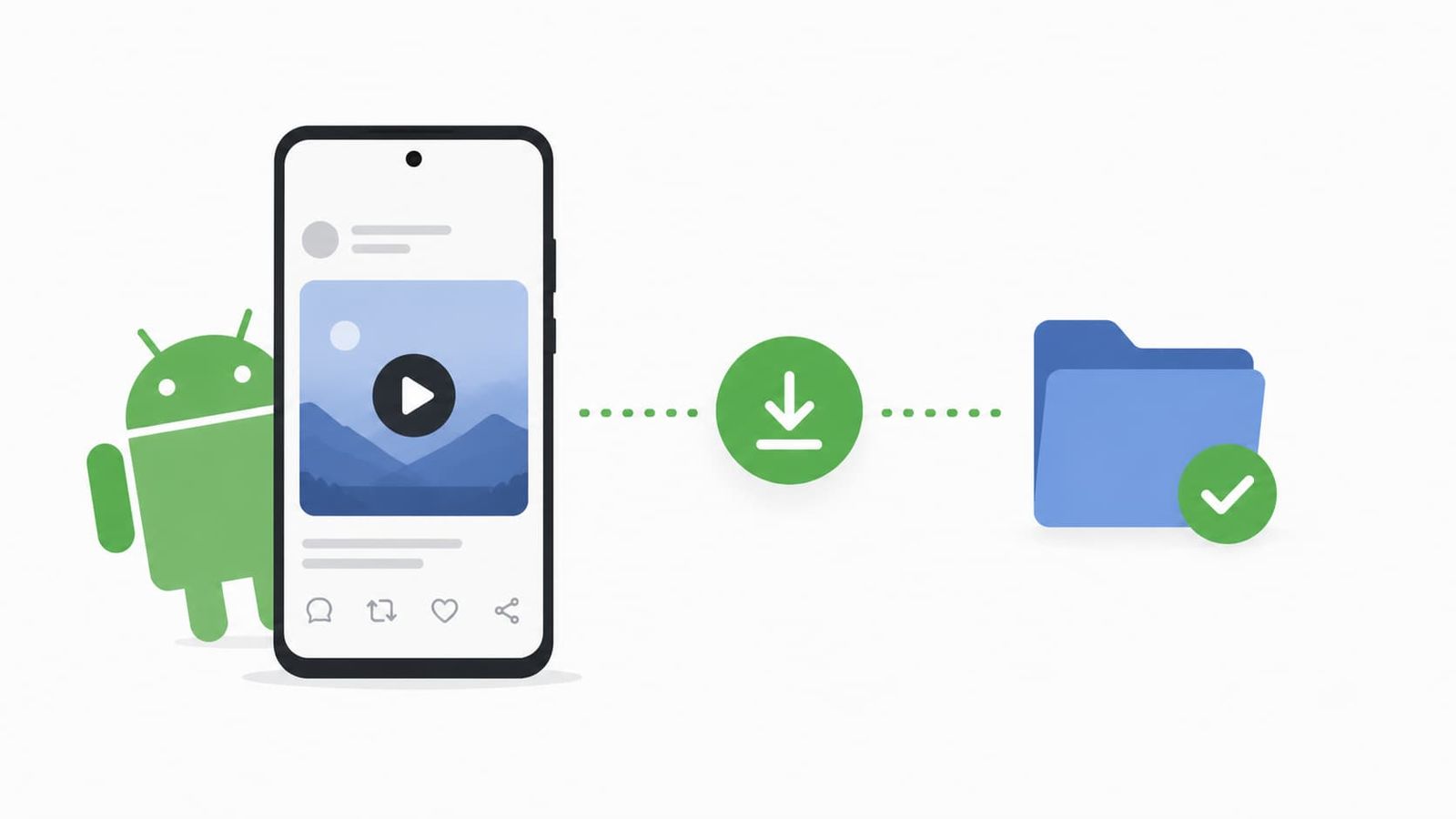
Android makes downloading X (formerly Twitter) videos easier than iPhone does, but X still offers no native download button. The fastest method is pasting your video link into a free browser tool like Fetchlix, picking your quality, and downloading the file directly to your phone. No app installs, no account, no cost.
X has never offered a built-in video download button, and that has not changed in 2026. Most people either give up or install a random app they found on the Play Store. Neither is a great solution. The better approach is a reliable browser-based tool that takes under 15 seconds and leaves nothing installed on your device. This guide walks you through three methods that actually work on Android, starting with the fastest one.
Why Android Users Still Need a Workaround
X removed the ability to natively download videos years ago, and nothing has changed in 2026. You can Like a post, you can Repost it, but you cannot tap a button and download the video file to your Android device. For a platform built heavily around video content, that is a frustrating gap.
The process is slightly more straightforward on Android than on iPhone because the file system is more open. If you are on iOS, the guide to downloading X videos on iPhone without an app walks you through that separately. For Android, read on.
What You Will Need
- An Android phone running Android 8 or later
- Chrome, Firefox, or any modern browser
- The URL of the public X post containing the video
No third-party app installation required for any method in this guide.
Method 1: Using a Browser-Based Downloader (Fastest)
This is the method most people should use. It requires zero setup and works on every Android phone regardless of brand.
The best tool for this is Fetchlix. It is a free X video downloader with no ads, no data collection, and no account requirement. You paste a link, choose between HD video, SD video, or MP3 audio, and the file downloads directly from X's servers to your device. It takes under 15 seconds for most videos and works cleanly in Chrome on Android. If you want to compare it against other options first, this breakdown of the best X video downloader tools that are fast and free is worth a read.
Step 1: Copy the Post URL
Open the X app on your Android phone. Find the video you want to download, tap the Share icon, and select Copy Link. The URL is now on your clipboard.
Step 2: Open Fetchlix in Your Browser
Open Chrome (or any browser) and go to fetchlix.com. Tap the input field and paste the URL you copied.
Step 3: Choose Your Format and Download
Tap Download. Fetchlix will retrieve all available formats from X and display them. Your options will typically include HD (up to 1080p), SD, and MP3 audio. Tap the format you want.
Step 4: Download the File to Your Phone
Chrome will download the file automatically and show a notification at the bottom of your screen when it is done. Tap Open to play it, or go to your Downloads folder in the Files app to find it. From there you can move it to any folder or your Gallery.
Method 2: Using the Android Share Sheet Directly
If you want to skip copying and pasting a link manually, some Android setups let you share directly from the X app to your browser.
- In the X app, tap Share on the post with the video.
- Select Copy Link and then open your browser manually, or on some Android versions you can share directly to Chrome if it appears in the share sheet.
- Navigate to fetchlix.com, paste the link, and follow the same download steps above.
The experience varies slightly depending on your Android version and phone brand, but the core process is identical.
Method 3: Using a File Manager to Organise Downloads
Once you have downloaded a video through Fetchlix or any browser tool, Android gives you full control over where it lives on your device.
- Open your phone's Files app (or a file manager like Google Files).
- Navigate to the Downloads folder.
- Long press the video file and tap Move or Copy.
- Move it to your DCIM folder or any folder your Gallery app scans, so it shows up alongside your other videos.
This step is optional if you are happy accessing videos from the Downloads folder, but it keeps things tidy if you download often.
Things to Keep in Mind
Only public videos are downloadable. If a post belongs to a private or protected account, no browser tool will be able to fetch it. This is not a limitation of the tool; it is a fundamental access restriction.
Quality depends on the original upload. If the creator uploaded a 720p video, you will not be able to get it in 1080p. Fetchlix pulls the highest resolution X actually hosts for that video.
Be careful with unknown downloader sites. Plenty of low-quality X downloaders are loaded with aggressive ads, pop-ups, or worse. Stick to well-maintained tools. If a site asks you to install an APK, complete a survey, or enable notifications before downloading, close it immediately.
Resharing carries responsibility. Downloading for offline personal viewing is generally fine. Using someone else's video content commercially or re-uploading it without credit is a different matter. Give creators credit when you reshare their work.
Wrapping Up
Downloading X videos on Android is quicker than most people expect once you have the right tool. Fetchlix handles the heavy lifting in seconds, works on every Android browser, and keeps your data private throughout. If you download videos regularly, pairing Fetchlix with a tidy file manager setup keeps everything organised without any extra hassle.

Loves creating new stuff and creator who believes great content deserves to be shared freely and responsibly.