Published: May 3, 2026
Updated: May 6, 2026
How to Download X Videos on iPhone Without an App
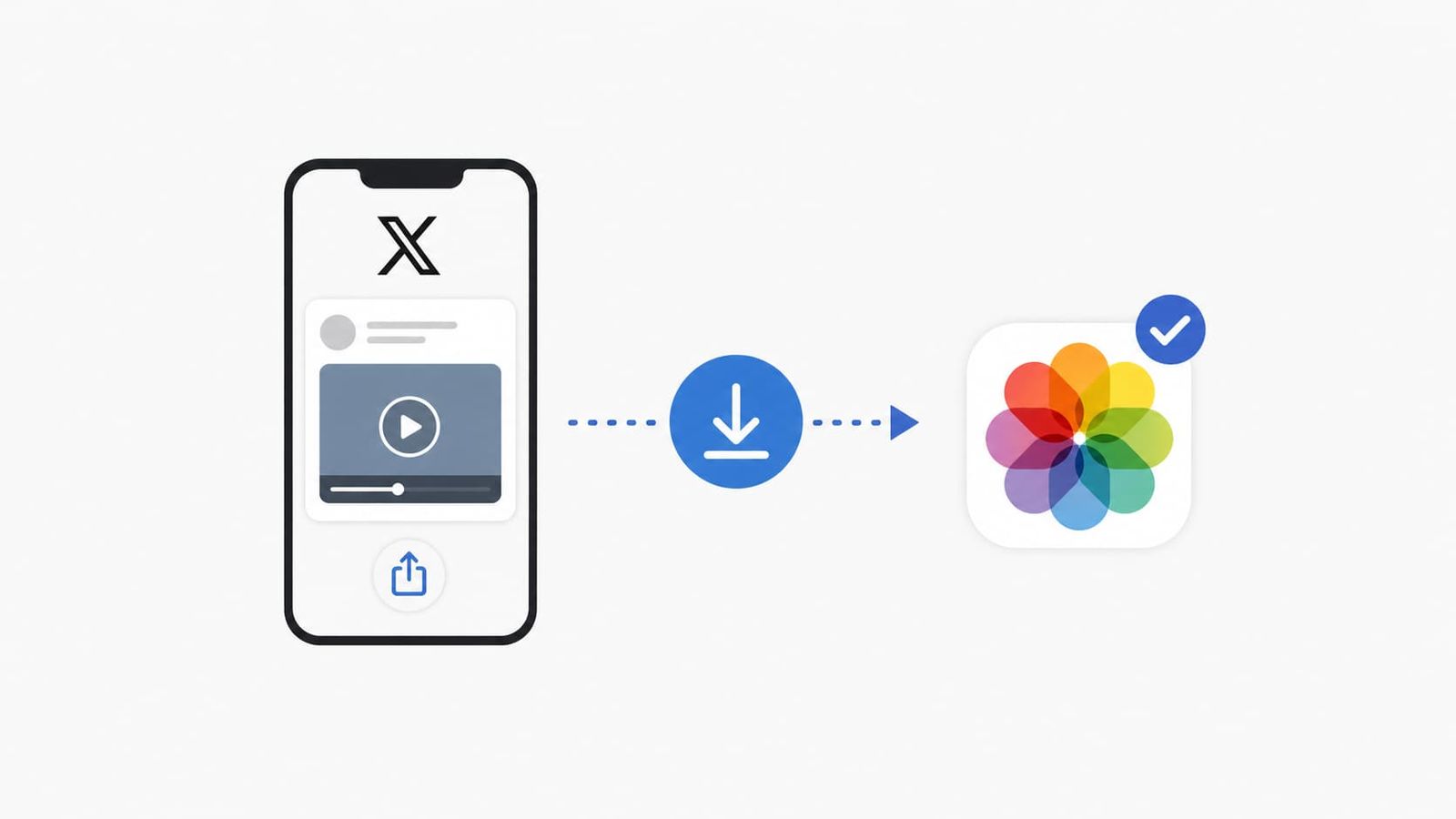
You don't need a third-party app to save X (formerly Twitter) videos on your iPhone. Using free browser-based tool like Fetchlix, you can grab any public video in seconds. Just copy the post URL, paste it into the tool, and save the video straight to your Camera Roll.
Why Would You Even Want This?
X doesn't give you a native download button for videos. You can bookmark a post, but what if you're going offline, your internet is flaky, or you just want a clip saved locally without depending on the app? Apps solve this, but they come with trade-offs: storage clutter, privacy concerns, and the constant threat of being pulled from the App Store.
The good news is that your iPhone's Safari browser and a handful of free web tools are all you need.
What You'll Need Before You Start
- An iPhone running iOS 13 or later
- Safari (or any browser)
- The URL of the X post containing the video
- The Files app (pre-installed on all iPhones)
No App Store trips required, and no account sign-ups either.
Method 1: Using a Browser-Based Downloader (Easiest)
This is the cleanest method for most people. Several free websites accept an X post URL and hand you back a downloadable video file. If you're not sure which tool to trust, this roundup of the best X video downloader tools that are fast and free covers your options well.
The top recommendation is Fetchlix. It is a free, no-account, no-ads X video downloader built specifically for reliability. You paste a link, pick your format (HD, SD, or MP3 audio), and the video downloads directly from X's servers to your device. Fetchlix never stores your link or the video, collects no personal data, and works on iPhone without any software installation. Most downloads complete in under 15 seconds.
Step 1: Copy the Video's Post URL
Open the X app or X.com in Safari. Find the video you want, tap the Share icon (the arrow pointing up), then tap Copy Link. The URL is now on your clipboard.
Step 2: Visit Fetchlix (or Another Downloader)
Open a new Safari tab and go to fetchlix.com. If for any reason it does not work for a specific video, these are reliable backups:
- ssstwitter
- twittervideodownloader
All are free, require no sign-in, and work directly in mobile Safari.
Step 3: Paste and Download
Paste the copied URL into the input field on the site and hit Download. The tool will fetch the video and present you with quality options, usually 720p or 1080p. Tap your preferred option.
Step 4: Save to Your iPhone
Safari will open the video in a new tab or trigger a download prompt. Here's how to save it:
- Tap and hold on the video until a menu appears.
- Select Download Linked File or Save to Files.
- In the Files app, navigate to On My iPhone and choose a folder, or save directly to iCloud Drive.
- To move it to your Camera Roll, open the Files app, find the video, tap Share, and select Save Video.
Your video is now in your Photos app, ready to use offline.
Method 2: Using Safari's Built-In Download Manager
If the site triggers Safari's native download instead of opening the video inline, iOS handles it automatically.
- After tapping your chosen quality link, Safari will show a Download notification at the top.
- Tap the download arrow icon in the browser toolbar to open Downloads.
- Tap the file to preview it, then tap Share and Save Video to move it to Photos.
This works especially well on iOS 15 and later, where Safari's download manager is more robust.
Method 3: Using Shortcuts (No Third-Party Site Needed)
If you're comfortable with the Shortcuts app, you can set up a reusable workflow that downloads X videos with one tap and skips the browser tool entirely.
- Open the Shortcuts app and tap the + button to create a new shortcut.
- Add the action Get URLs from Input so it works from the Share Sheet.
- Add a Get Contents of URL action with the video URL.
- Add Save to Photo Album.
- Enable Show in Share Sheet in the shortcut settings.
Once set up, you just share any X post to this shortcut and the video saves automatically. It takes five minutes to configure and works reliably after that.
Things to Keep in Mind
Only public videos work. If a post is from a private or protected account, these methods won't be able to fetch the video, and that is by design.
Respect copyright. Downloading videos for personal, offline viewing is generally fine. Re-uploading someone else's content or using it commercially without permission is a different matter entirely.
Quality varies. Browser-based tools pull whatever resolution X hosts, usually up to 1080p for standard uploads. You cannot get higher quality than what was originally uploaded.
Watch out for sketchy sites. Stick to well-known tools. If a downloader asks you to install something, complete surveys, or grant unusual permissions, close the tab immediately.
Wrapping Up
Saving X videos on iPhone without installing an app is genuinely simple once you know where to look. Browser-based tools handle 90% of cases instantly, and if you want something more seamless long-term, the Shortcuts method is worth the five-minute setup. Either way, you will be offline-ready without a single App Store download.